Apple
Signal for Mac Is the Perfect Messaging Companion to Android
One of the supposed disadvantages of using an Android phone with a Mac is the lack of a unified messaging experience. Apple naturally wants the iPhone and Mac to work together, so Android users are often left stitching together their own combination of apps and browser tabs.
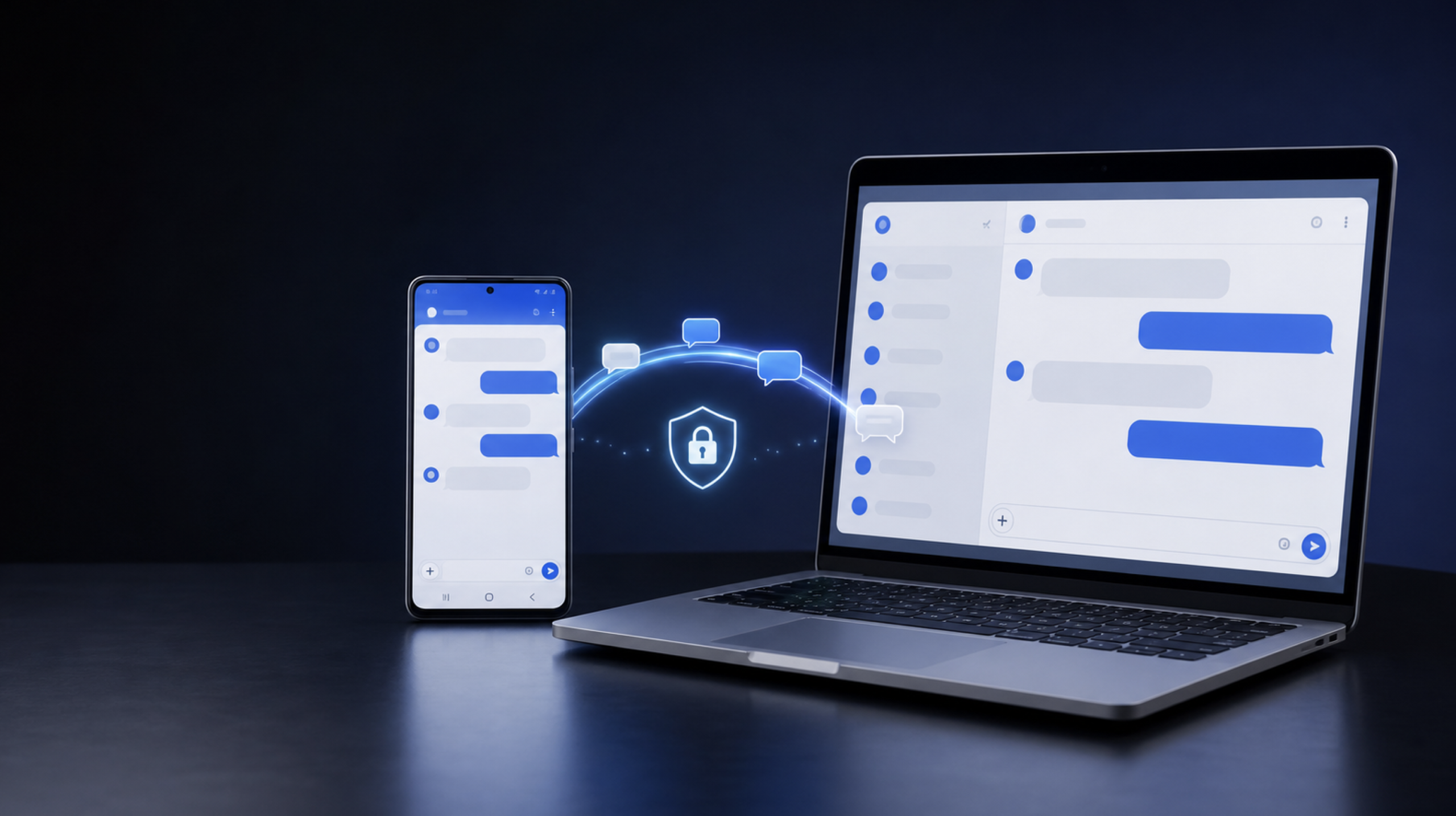
Signal completely changes that experience.
I use Signal on Android as my primary messaging app, but it is the Mac version that has made me appreciate how well a truly cross-platform service can work. Messages appear quickly, conversations remain synchronized and moving between my phone and computer feels effortless.
It simply does not skip a beat.
Signal Doesn’t Care Which Ecosystem You Chose
The best thing about Signal for Mac is that it does not make Android users feel like second-class citizens.
It does not matter that my phone and computer were made by different companies. I can begin a conversation on Android, sit down at my Mac and continue typing with a full keyboard. When I leave my desk, the conversation is waiting for me on my phone.
There is no browser session to keep alive and no awkward workaround tying the experience together. Signal offers a proper desktop application that works alongside the Android app.
This is how cross-platform messaging should feel: uneventful, dependable and almost invisible.
Linking Signal to a Mac Takes Minutes
Signal must already be installed and registered on your phone before you can use the desktop application. The Mac becomes a linked device rather than a separate Signal account.
Setup is refreshingly simple:
- Download Signal from the official Signal for Mac page.
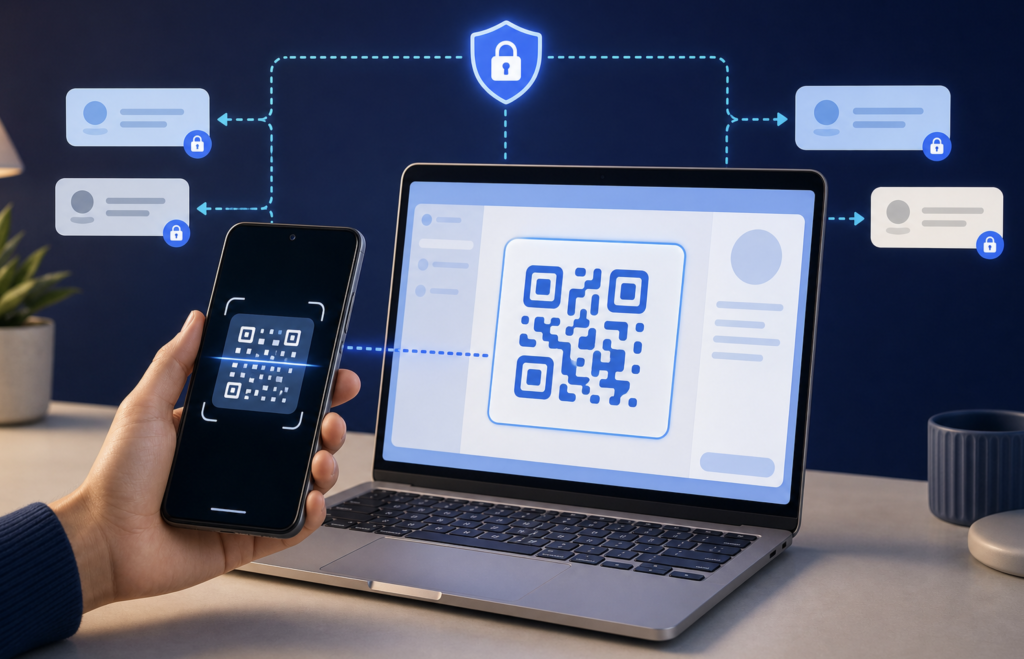
- Open the application on your Mac to display its QR code.
- Open Signal on your Android phone.
- Go to Settings → Linked devices → Link a new device.
- Authenticate on the phone and scan the QR code shown on the Mac.
- Choose whether to transfer your available message history.
Signal can synchronize your chats and the previous 45 days of media during initial setup. You can connect as many as five linked devices to one phone, according to Signal’s linked-device documentation.
Signal Desktop currently requires macOS 12 Monterey or later.
Your Phone Doesn’t Have to Sit Beside the Mac
Once the Mac is linked, Signal Desktop communicates independently. Your phone does not need to remain beside the computer or stay connected to the same Wi-Fi network for every message.
Each linked device receives its own encrypted message queue. If the Mac has been offline, pending messages are delivered and processed when Signal Desktop reconnects.
That independent design is a major reason the desktop application feels so reliable. It is not merely mirroring the phone’s screen or maintaining a fragile connection to the Android device.
There are a couple of sensible limits. Signal says the primary phone must connect to the service at least once every 30 days, and a linked device can become unlinked after 45 days of inactivity. In normal daily use, neither condition should be a concern.
The Experience Feels at Home on macOS
Signal Desktop is straightforward in exactly the right way.
Conversations live in a familiar sidebar, the active chat receives most of the available space and search is always close at hand. Photos and other attachments are far easier to examine on a large display, while longer messages are naturally more comfortable to compose with a physical keyboard.
The Mac application supports much more than basic text messaging. Depending on the conversation, you can:
- Send photos, videos, documents and voice messages
- Reply to individual messages
- Edit recently sent messages
- Use reactions, stickers and GIFs
- Format text
- Search within conversations
- Make voice and video calls
- Share your screen during desktop calls
- Create or join group conversations
- Use disappearing messages
- Access Note to Self
- Manage notification privacy
Keyboard shortcuts make the application even more efficient. Command-F searches, Command-N starts a new conversation, Command-U attaches a file and Command-B formats selected text in bold. Signal provides a much longer list in its desktop keyboard-shortcut guide.
None of these features feels revolutionary by itself. Their value comes from how consistently everything works between Android and macOS.
Notifications Without Giving Away the Conversation
Desktop notifications are convenient, but they can also expose private messages whenever someone else can see your screen.
Signal lets you decide how much information appears in Mac notifications. You can show the sender and message, display the sender’s name without the content, conceal both or disable desktop notifications completely.
The setting is particularly helpful when using a Mac in an office or shared environment. You still know that a message arrived without placing the conversation on the lock screen.
One macOS-specific detail is worth knowing: Signal says notifications for disappearing messages display the generic phrase “New Message,” regardless of the normal notification-preview setting.
Privacy Travels With You to the Mac
Signal’s greatest advantage remains its approach to privacy.
Messages and calls are end-to-end encrypted, including communication handled by linked devices. Linking a Mac does not convert the conversation into an ordinary cloud inbox that Signal can freely read.
Each device maintains its own encryption keys and processes its own encrypted message queue. Signal has explained that even disappearing-message information is handled by individual devices rather than revealed to its service unnecessarily.
Disappearing-message timers synchronize across linked devices, and messages are removed from a device’s storage when their timers expire. Signal correctly warns that this is not foolproof protection against a determined recipient—they could still photograph the screen—but it is useful for reducing the amount of old conversation data retained on your devices.
This design provides the convenience of multi-device messaging without abandoning the privacy principles that made Signal appealing in the first place.
Voice and Video Calls Work From the Desktop Too
Signal for Mac can also handle encrypted voice and video calls.
Using the Mac for calls is often more comfortable than balancing a phone during a longer conversation. A larger screen works better for group video, while desktop screen sharing is useful for explaining a document, troubleshooting a problem or working through something collaboratively.
The first time you call, macOS may ask for camera and microphone access. Those permissions can be reviewed through Signal’s preferences and the Mac’s Privacy & Security settings.
Signal also provides separate options for incoming calls, call sounds and relaying calls through its service. Relaying can conceal your IP address from the other participant, although it may reduce call quality.
Where Signal for Mac Could Be Better
Signal Desktop is excellent, but it is not completely independent.
You still need a registered Signal phone to establish the account, link new devices and recover from an unlinking event. You cannot simply install the Mac application and create a desktop-only Signal identity.
Initial message-history synchronization is also intentionally limited. Signal is not designed as a permanent, searchable cloud archive containing every conversation you have ever had.
These limitations reflect Signal’s security model, but new users should understand them before assuming it behaves like a traditional cloud messenger.
The other obvious limitation is social rather than technical: Signal is most useful when the people you communicate with are willing to use it. A fantastic Mac application cannot help with conversations that remain trapped in another service.
Why It Works So Well for Android and Mac Users
Apple provides an impressive experience when every device carries its logo. Signal demonstrates that a similarly smooth messaging workflow does not have to depend on buying into one manufacturer’s entire ecosystem.
My Android phone remains my primary Signal device. My Mac becomes the better place to handle conversations whenever I am working at my desk. Neither device feels like an accessory to the other.
Messages arrive where I expect them. Files transfer easily. Notifications are controllable. Calls work. Conversations remain private.
Most importantly, I rarely have to think about whether Signal is synchronized. It just is.
I love it
Signal for Mac is one of the easiest recommendations I can make to anyone who uses Android and macOS together.
It installs quickly, links through a QR code and delivers a complete desktop messaging experience without sacrificing end-to-end encryption. The Mac application is fast, uncluttered and dependable enough that it quickly becomes part of the everyday workflow.
Plenty of technology claims to bridge ecosystems. Signal actually does it—and in my experience, it does not skip a beat.
Signal can be downloaded from the official Mac download page. Avoid third-party download sites.

Written by
Bryan
Independent technology coverage focused on useful context, real-world experience, and honest recommendations.