Review Review
NotchNook Pro Review: A Small Mac Upgrade With Plenty of Personality
NotchNook Pro brings music, files, calendar events and more to the top of your Mac. Its customization options are what make it stand out.
How this review was made
The verdict
NotchNook Pro
NotchNook Pro turns the top of your Mac into a useful home for music, files, calendar events and more. Its quality and extensive customization options are the highlights, with control over appearance, sizing, animations and menu layouts. Navigation between panels within the notch still needs a few tweaks, but the overall package earns a strong recommendation.
Apple silicon Mac users who enjoy customizing their workspace
People who want music, calendar events and files within easy reach
Creators interested in a teleprompter near the camera
Power users who prefer several useful tools in one app
You use an Intel Mac
NotchNook Classic already does everything you need
Your existing utilities cover the same features
You prefer a minimal desktop without extra panels and activities
Pros
- Excellent settings and customization options
- Quality presentation and thoughtful visual details
- Choice of Glass and Classic appearances
- Adjustable dimensions, animation speeds and menu layouts
- Useful combination of music, clipboard, calendar and file tools
- Works with external displays and Macs without a notch
- Reasonable lifetime price covering two Macs
Cons
- Navigation between panels within the notch needs refinement
- Pro requires Apple silicon
- Existing Classic licenses do not activate Pro
- Some features overlap with dedicated utilities and free alternatives
- Activation and periodic license checks require internet accessthese
MSRP$19
Check current priceSome Mac apps win you over by doing something enormous. Others make a familiar part of the computer more useful.
NotchNook Pro belongs in the second group.
It turns the area around your Mac’s camera into a place for music, files, calendar events, quick notes and a surprising number of other tools. The idea has an obvious visual appeal, but the part I like most is how much control you get over it.
I am using it on an M1 Max Mac running macOS 27.1. My impression so far is positive: it feels like a quality utility, and the settings and customization options are a particular strength.
For an app that sits in such a visible part of the screen, that flexibility matters.
The Settings Are a Big Part of the Appeal
The best thing about NotchNook Pro’s appearance settings is that there is more to them than choosing a color.
You can choose a translucent Glass appearance or a solid black Classic style. There are controls for animation speed, the workspace menu and the dimensions of the interface. The menu can show labels and icons in Compact mode, use Icons alone, sit In the notch, or shrink down to Dots.
My current setup uses Classic, the Dots menu and the Slower animation setting.
That combination illustrates what I like about the app. Pro gives you room to make it more restrained if the larger glass presentation feels excessive. You can also adjust the open island’s width and height, with separate corrections for the closed notch.
These are practical settings for something you will see throughout the day. An interface that looks attractive in a promotional image still needs to suit your screen, your wallpaper and your tolerance for movement.
NotchNook Pro lets you make those decisions yourself.
What Actually Lives in the Nook
The Nook is the panel that opens when you move the pointer to the top of the screen. Its widgets can be added, removed and rearranged, so the layout can reflect the things you want close at hand. The developer advertises 37 features across Pro, including its different workspaces and Live Activities. NotchNook Pro overview.
Music controls and a calendar are the obvious starting points. Notes, tasks, timers, weather, a camera mirror and Apple Shortcuts broaden the idea into a collection of quick utilities. Official release notes.
My advice would be to start small. Put a few useful tools there and add more when you have a reason.
A panel does not become more useful simply because every available widget is switched on. The customization is valuable because you can choose what deserves the space.
Music Gives It an Everyday Purpose
NotchNook supports Apple Music, Spotify and other apps that appear in macOS Now Playing. If more than one source is active, you can choose which one it follows. Pro also adds synchronized lyrics. Music support, Pro feature overview.
The appeal is easy to understand. A quick pause or track change should not require bringing a large music window to the front.
Lyrics add personality, but the basic controls are the stronger reason to have music here. They give the panel a recurring job, even if you never touch its more specialized features.
Files Are Where the Idea Gets Practical
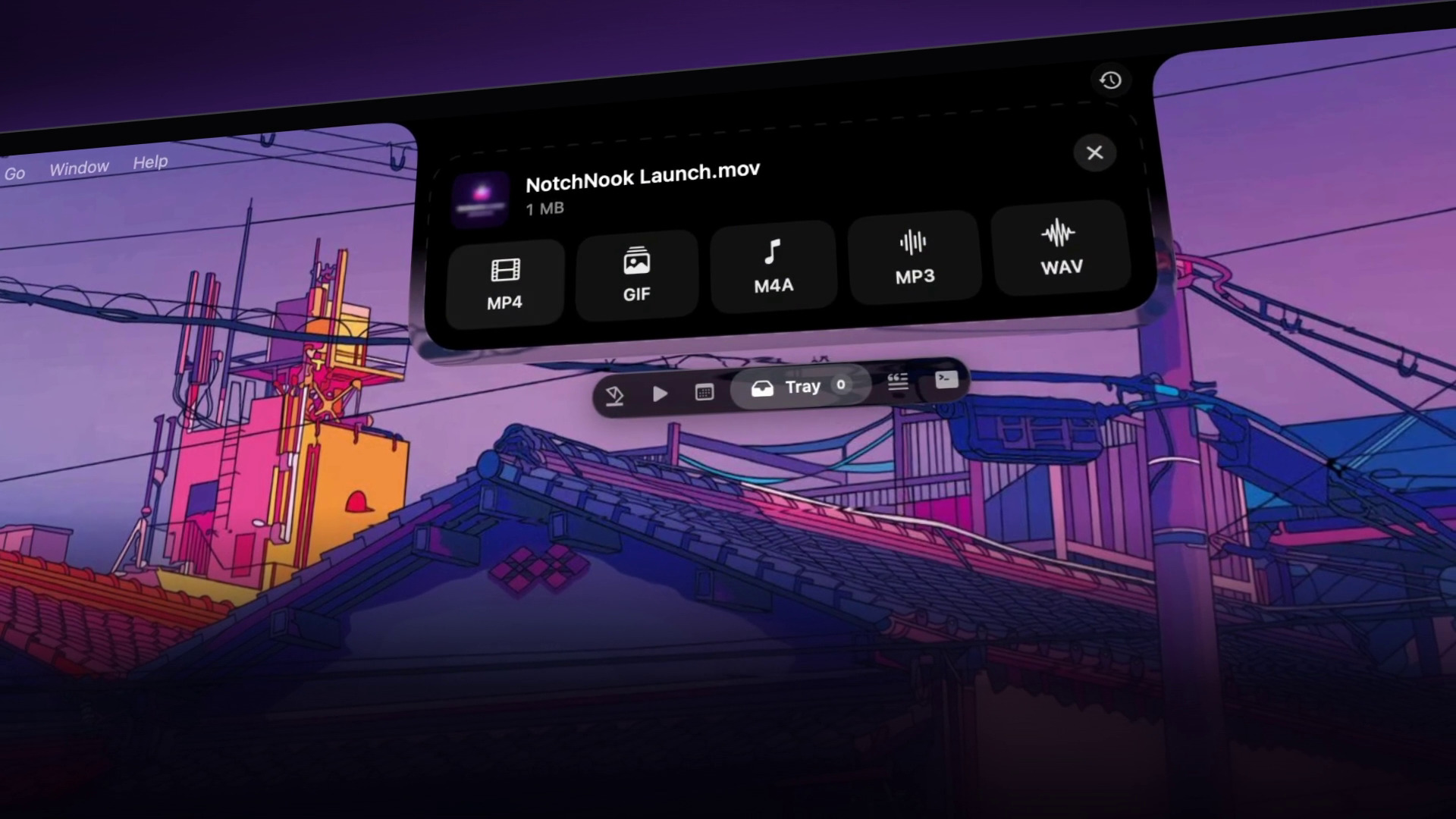
The Tray gives you a place to hold files while moving between apps. Drag a file toward the notch, leave it in the Tray, then drag it to its destination when you are ready. The drop area also offers AirDrop and file conversion. Pocket adds temporary file holders that appear when you shake the pointer while dragging. File tools.
Think about preparing a blog post. You may have screenshots in one folder, a featured image somewhere else and a browser waiting for uploads. A temporary shelf can give those files a place to wait while you get the destination ready.
That is a more convincing productivity argument than another animated status indicator.
The official press materials show conversion options including MP4, GIF, M4A, MP3 and WAV. Clipboard history is another Pro addition, making previously copied items available again without returning to their original app. NotchNook Pro press materials.
If you already have a file shelf and clipboard manager you love, these features may overlap with tools you own. Their value here is the convenience of bringing them together.
Calendar, Timers and the Small Stuff
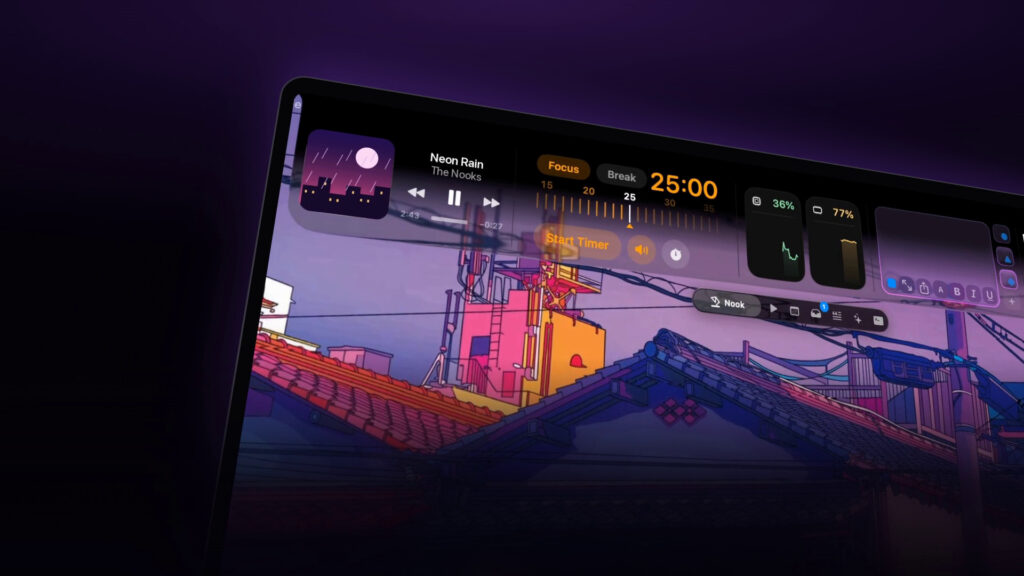
Calendar events come through the Mac’s Calendar app. That includes Google Calendar when the Google account has been added there. The developer also lists meeting join buttons for services including Meet, Zoom, Teams and Webex. Calendar integration, Meeting features.
Those are sensible things to put near the top of the screen. Your next meeting and a running timer are information you may want to glance at while doing something else.
Pro’s Live Activities extend that approach to events such as downloads, battery changes and connected AirPods. It also offers volume and brightness displays around the notch. Live Activities.
Whether that feels helpful or busy will depend on how you configure it. I would treat the settings as part of the experience, rather than switch everything on and judge the resulting clutter.
A Teleprompter and AI Agent Controls Too
The teleprompter is one of Pro’s more thoughtful uses of the location. It places a script below the camera and can scroll automatically or follow your voice. Teleprompter details.
For someone recording a short video, keeping the script near the lens has an obvious advantage over reading from another window farther down the screen.
There are also controls for following Claude Code and Codex sessions, responding to questions and approving commands. Pro includes AI usage information and a terminal as well. Agent features, Additional Pro tools.
These are specialized additions. Someone who mainly wants music and a file shelf may never use them. For someone working with coding agents throughout the day, they provide another reason to consider Pro.
I would buy it for features that fit your routine today. The long list is a bonus if you find more uses later.
Pro and Classic Are Separate Purchases
This is the most important detail for existing NotchNook owners.
Classic and Pro use separate licenses. A Classic key does not activate Pro, and buying Pro does not automatically cancel a Classic subscription. The developer says Classic remains available and continues receiving updates. License information, Pro and Classic comparison.
| Feature | Classic | Pro |
|---|---|---|
| Music, calendar and file Tray | Yes | Yes |
| Solid black appearance | Yes | Yes |
| Glass appearance | No | Yes |
| Pocket and clipboard history | No | Yes |
| Song lyrics and file converter | No | Yes |
| Teleprompter and AI agent controls | No | Yes |
| Intel Mac support | Yes | No |
For someone buying for the first time, Pro offers substantially more flexibility. For an existing Classic owner, the question is whether those additions solve a problem worth paying for again.
If Classic already does what you need, keeping it is a reasonable choice.
The Lifetime Price Makes More Sense
As of November 14, 2026, the official US listing shows Pro at $19 for a lifetime license or $3 per month. Classic is listed at $15 lifetime or $2 per month. One license covers two Macs. Current US pricing.
At those prices, seven monthly Pro payments total $21, already more than the lifetime option. If you expect to keep using it, I would choose the lifetime license.
Both editions have a 48 hour trial with every feature included and no payment card required. Pro needs Apple silicon and macOS 14.6 or later. A physical notch is optional, and external displays are supported too. Trial and compatibility, Display support.
There is an ownership detail worth understanding: activation and periodic license checks require an internet connection. A lifetime purchase does not make the licensing system entirely offline. License terms.
Permissions and Privacy
Features ask for the permissions they need, such as calendar access for events or camera access for the mirror. You can decline a permission and leave the associated feature disabled. Permission information.
The developer says clipboard content, notes and tasks stay on the Mac. Its privacy policy separately describes the purchase and device information used for licensing. Those are the company’s stated practices. Local data handling, Privacy policy.
That distinction matters for an app with clipboard access. Look at the features you want to use and grant access accordingly.
What About Free Alternatives?
Boring Notch is a free, open source alternative with music controls, calendar integration and a file shelf with AirDrop. It also supports Intel Macs.
That makes it a sensible option to explore if you mainly want the core notch experience without buying another utility.
NotchNook Pro’s case rests on whether its configuration options and broader collection of tools are worth $19 to you. The features overlap, so I would use the trial to make that decision rather than assume the paid app must be the better fit.
Panel Navigation Needs a Few Tweaks
The area I would most like to see improved is navigation between the panels within the notch.
There is plenty to like about the individual tools and the control over their appearance. Moving between those panels still needs a few tweaks, though. For a utility built around quick access, that part of the experience deserves just as much attention as the features themselves.
It is my main criticism of an otherwise quality app. The customization is a strength, but the navigation could use more refinement.
My Verdict
What I like most about NotchNook Pro is the room it gives me to adjust it.
The Classic and Glass appearances offer different visual directions. The menu layouts, animation controls and size adjustments let you go further. That flexibility helps turn an eye catching concept into something you can tailor to your own desktop.
The wider feature set adds substance. Music, files and calendar events give it an everyday purpose. The teleprompter and agent controls broaden the audience without needing to be the reason everyone buys it.
There are clear limits: Pro does not support Intel Macs, existing Classic owners need another license, and people who already use several dedicated utilities may find considerable overlap.
For an Apple silicon Mac user who likes customizing their workspace, NotchNook Pro earns a recommendation. Its quality and extensive settings make a strong impression, and the lifetime price is reasonable if it earns a regular place in your routine. Navigation between the panels is the main area that still needs work.
Rating: 8.9/10. A quality Mac utility with excellent customization and a useful collection of tools. A few refinements to panel navigation would make the experience stronger.
Try NotchNook Pro from the official website.
If you enjoy utilities that change familiar parts of the Mac, you may also like my DockDoor Pro review.

Reviewed by
Bryan
Independent technology coverage focused on useful context, real-world experience, and honest recommendations.