Review Review
CleanShot X 5 Review: Almost Perfect, Even Without the Cloud
After more than a year with CleanShot X, I rate it 9.7/10. Its capture tools, thoughtful extras and new Studio Mode make a compelling Mac utility without needing the cloud.
How this review was made
This review reflects more than a year of using CleanShot X. I do not use CleanShot Cloud, so the rating is based on the Mac app rather than its hosted sharing and collaboration features.
The verdict
CleanShot X
After more than a year of use, CleanShot X is almost perfect for my workflow. It brings screenshot capture, annotation, presentation tools and screen recording together in one capable Mac app. Studio Mode adds a video editor with zooms and cursor controls, while useful extras such as capture history, floating screenshots and text recognition add depth. I do not use CleanShot Cloud, and the Mac app earns this recommendation on its own.
Writers and reviewers who prepare screenshots regularly
Developers and support teams explaining software behavior
Designers who want consistent screenshot presentation
Creators making short demonstrations and tutorials
Mac users who want capable capture tools without relying on cloud sharing
You only take occasional screenshots with little or no editing
The Mac’s included capture tools already meet your needs
You want every future app update included in one permanent payment
You need a Windows version
Pros
- Almost perfect overall experience after more than a year of use
- Comprehensive screenshot capture and annotation tools
- Studio Mode adds zooms, cursor controls and video editing
- Reusable styling and editable screenshot files
- Useful capture history, floating references and text recognition
- The full Mac app is included in Basic
- Cloud sharing is optional
Cons
- Only one year of updates is included with Basic
- Continued updates cost extra after that period
- No direct free trial, although a refund guarantee is offered
- May be more than occasional screenshot users need
MSRP$35
Check current priceThe Mac already knows how to take a screenshot. Convincing someone to pay for another capture app takes more than a nicer shutter sound.
CleanShot X makes its case through everything that happens around the capture: choosing the right area, explaining what matters, preparing the image and getting it where it needs to go.
I have been using CleanShot X for over a year, and my rating is 9.7/10. For me, it is almost perfect.
I do not use its cloud features. My recommendation comes from the Mac app itself, which makes this a useful distinction for anyone wondering whether they need another online service to get their money’s worth.
You can keep the workflow centered on your own files and still have a very capable tool.
What Is New in CleanShot X 5
As of November 14, 2026, the latest version listed in the official release notes is 5.0.2, released October 26. It addresses text recognition problems on macOS 27, an issue that could stop recordings unexpectedly and compatibility with macOS Golden Gate. Those are documented fixes, rather than problems I am claiming to have encountered. CleanShot release notes.
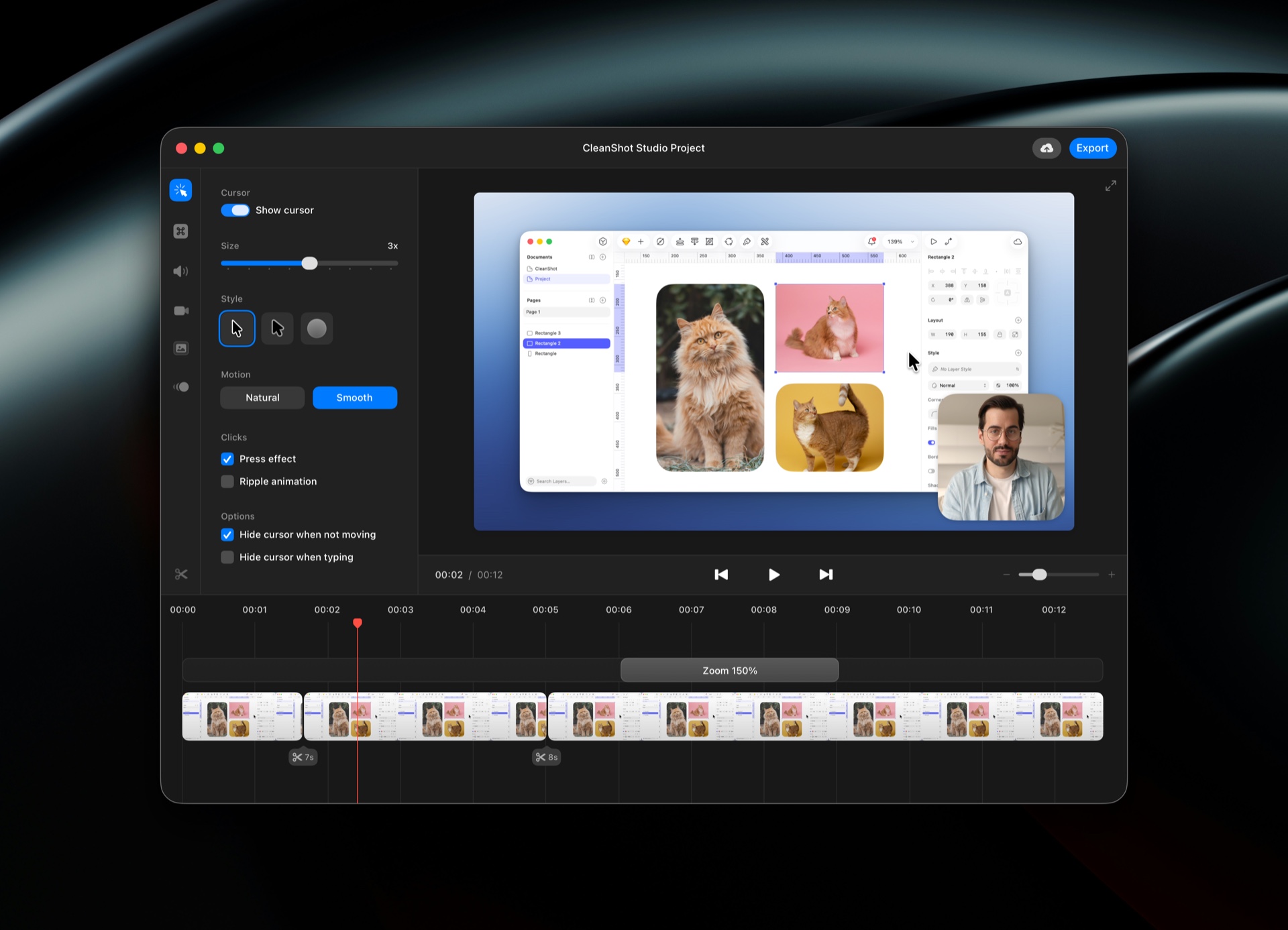
The major change arrived with version 5.0 on September 1: Studio Mode and a new video editor. The update adds smart zooms, cursor smoothing, motion blur, recording backgrounds and controls for adjusting elements such as the camera and cursor after capture. Settings were redesigned too. What changed in version 5.
My year of use spans earlier versions of CleanShot X. Studio Mode is a newer addition to that broader experience.
The important shift is that CleanShot now gives you more room to turn a straightforward screen recording into a presentation.
The Screenshot Is Only the Starting Point
For a blog, a screenshot usually needs to communicate something specific. A settings page needs a highlighted control. A tutorial needs a sequence. A comparison needs images that readers can inspect without guessing what they are supposed to notice.
CleanShot’s capture options cover areas, windows, the full screen and scrolling content. Its combined capture interface lets you choose dimensions and reuse a selection. Screenshot tools.
That flexibility is useful, but the bigger argument is how closely capture and explanation sit together.
There is less reason to treat taking the screenshot, opening an editor and preparing the final image as separate jobs. For someone who publishes regularly, that matters more than the novelty of any single capture mode.
It is the difference between having an image and having something ready to use.
Annotation Gives the Image a Purpose
The annotation tools include arrows, text, shapes, highlights, numbered counters and ways to conceal information. You can also combine images and save an editable CleanShot file for later changes. Annotation features.
The value is in choosing the right amount of explanation.
If a review discusses one setting, a single arrow may be enough. If a guide walks through several controls, numbered markers can create a clearer reading order. Filling the screen with annotations usually makes the reader work harder.
Saving an editable version is especially sensible for material you expect to revisit. An article may need a different label, a revised crop or another highlighted control when the software changes.
A finished image belongs in the article. An editable original belongs in your working files.
Presentation Tools That Suit a Blog
CleanShot’s background tools add padding, shadows and backgrounds, with reusable presets and an option to balance the spacing around the content. Background and styling tools.
For a publication, consistency is the attraction. A group of screenshots feels more considered when the spacing and presentation follow the same approach.
I would use those controls selectively. A framed image can work well as a feature image or social graphic. A close crop may be better when the point is a small piece of interface text.
The tool gives you options. The article should decide which one earns its space.
Studio Mode Makes Recording More Interesting
Studio Mode is the most substantial reason to look again at the latest release.
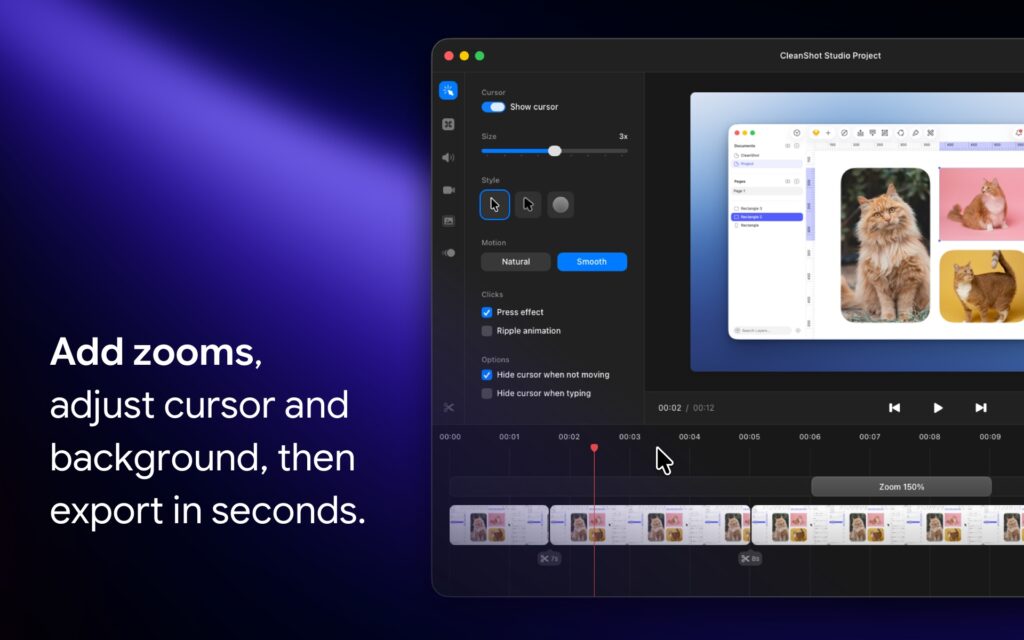
The editor lets you trim a recording, direct attention with zooms, refine cursor movement and appearance, add backgrounds and adjust motion blur. Exports can use landscape, square or vertical formats. The recording tools also support a camera bubble, microphone and system audio, click highlights and visible keystrokes. Recording and Studio Mode.
That is a useful collection for explaining software. A desktop recording can become difficult to follow when a small control is surrounded by an entire screen of unrelated content.
A zoom can show the reader where the action is happening. A clearer cursor can help them follow it. Trimming a pause can keep the explanation moving.
For something like a NotchNook walkthrough, I would build the video around one task: open a panel, change a setting and show the result. A short demonstration with a clear purpose is more useful than a tour of every menu.
I would still approach a larger video project in a dedicated editor. CleanShot’s attraction is having these presentation tools close to the capture itself, making a short demonstration less of a production.
Useful Features Worth Trying
The official website documents several smaller tools that deserve attention alongside Studio Mode. These are practical suggestions for getting more from the app, rather than a claim that every feature is part of my daily routine.
Drag from the Quick Access Overlay. The small panel that appears after capture offers copy, save and editing actions, and lets you drag the capture into another app. For a blog upload or a message, that can avoid a trip through Finder. Quick Access Overlay.
Keep a reference floating above your work. Pinned screenshots stay above other windows, with adjustable size and opacity. That is useful when comparing an interface with a reference image or following instructions while changing settings. Floating screenshots.
Check history before capturing again. Capture History can retain up to a month of recent material. Treat it as a way to recover something you just used, while saving important project files somewhere permanent. Capture History.
Extract text instead of retyping it. CleanShot’s text recognition can copy words from images and other content you cannot select normally. The developer says recognition runs on the Mac. It is a useful place to start when a screenshot contains a setting name, error message or short passage you need to quote accurately. Check the result before using it. Text recognition.
Make your shortcuts suit the job. CleanShot documents commands for repeating the previous capture area, opening history and moving a clipboard image into Annotate. If you already use a launcher or automation tool, those actions offer ways to bring repeated capture tasks closer to your existing shortcuts. Supported commands.
None of these tools needs to become a new hobby. Try the ones that remove a step from something you already do.
I Do Not Need the Cloud to Recommend It
CleanShot Cloud offers hosted sharing and collaboration, but it is not part of my own usage. I am not including it as a tested strength in this score.
The company confirms that using its cloud service is optional. Captures can be saved, copied and used in other apps without uploading them there. Cloud requirements.
That is one of the reasons the product makes sense to me. I want a useful capture app whether I am preparing a blog image, collecting reference material or sending a file through a service I already use.
The local app earns the recommendation on its own.
The Pricing Needs One Clear Explanation
CleanShot Basic costs $35, includes the full Mac app and comes with one year of updates. That includes Studio Mode, rather than reserving the video editor for Pro. The Pro subscription is listed at $10 per user per month when billed annually, with unlimited cloud storage, branding and team features. Prices are in US dollars. Current pricing.
The distinction matters. You do not need Pro simply to get the complete capture and editing tools.
When the included update period ends, you can keep using your last eligible version. Another year of updates costs $19 per seat, and renewal is optional. This is continued use of the version you own, not a promise of every future update at no extra charge. Update policy.
For my use without CleanShot Cloud, Basic is the plan I would point most people toward first.
What Keeps It From Being an Automatic Purchase
Almost perfect does not mean everyone needs it.
If you take an occasional screenshot and send it without editing, the Mac’s included tools may already cover your needs. The case for CleanShot becomes much stronger when you regularly explain, annotate, prepare or record things on screen.
The update policy is another consideration. The app remains usable after the first year, but staying current can add to the cost over time.
There is also no direct free trial. CleanShot instead offers a 30 day refund guarantee, while availability through Setapp provides another way to try it under that service’s terms. Trial and purchase information.
Those are buying considerations, rather than reasons to invent a major complaint about an app I rate so highly.
My Verdict
After more than a year with CleanShot X, I am comfortable giving it 9.7/10.
It brings the capture, explanation and preparation of screenshots together in a way that makes sense for people who create things on their Mac. Studio Mode expands the same idea to more polished screen recordings, while smaller tools such as floating references, history and text recognition give the app useful depth.
I do not use the cloud features, and I do not need them to justify the recommendation.
For writers, reviewers, developers, designers and anyone who regularly shows other people what is happening on screen, CleanShot X deserves serious consideration. The price is easiest to justify when capturing and explaining things is part of your normal work.
Rating: 9.7/10. Almost perfect for my use, with a complete Mac app that earns its place without relying on the cloud.
See CleanShot X and its current plans.
For another utility focused on making everyday Mac interactions more useful, read my NotchNook Pro review.

Reviewed by
Bryan
Independent technology coverage focused on useful context, real-world experience, and honest recommendations.