Review Apple
Getting More From Your Mac: My Favorite Apps, Upgrades, and Lessons
This roundup connects those articles, including my app reviews, experiences using Android alongside macOS, creative software comparisons, and thoughts on when hardware upgrades justify their cost.
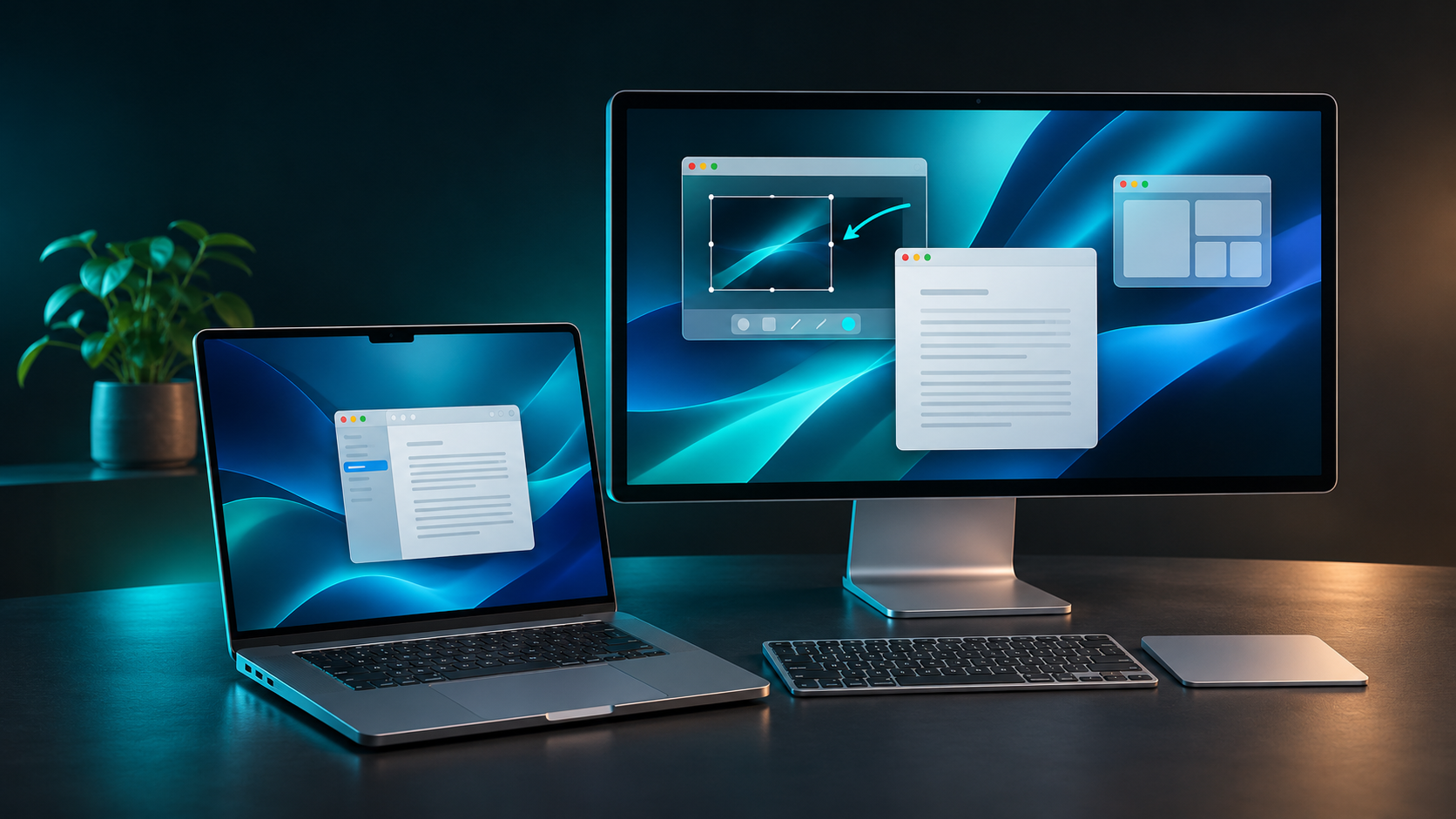
From CleanShot X and DockDoor Pro to Android integration, notch utilities, and hardware buying decisions, here is my Mac coverage in one place.
Some of the most worthwhile Mac upgrades are surprisingly small.
A better way to switch windows. A screenshot tool that makes explaining something easier. An app that brings your Android phone onto the desktop. These are the changes you appreciate while using the computer, long after the excitement of installing something new wears off.
That has become a recurring theme in my Mac coverage on Bryan’s.blog.
I enjoy new hardware and follow Apple’s software closely. But I also like finding ways to make the computer I already own more useful. My recent setup includes an M1 Max Mac, and plenty of the improvements I have written about come from what runs on it.
The Mac utilities I would look at first
These are my published review scores, reflecting my experience at the time of each review.
| App | What I reviewed it for | My score |
|---|---|---|
| CleanShot X 5 | Screenshots, annotation, and screen recording | 9.7/10 |
| DockDoor Pro | A more capable Dock and window workflow | 9.3/10 |
| Superwhisper | Dictation that fits into everyday writing | 9/10 |
| NotchNook Pro | Customizable tools around the Mac’s notch | 8.9/10 |
| Alcove | Polished notch interactions and system feedback | 8.5/10 |
| Cotypist | AI autocomplete inside the apps you use | 7.5/10 |
These apps solve different problems. The highest score does not automatically make something the right purchase for everyone. Start with the part of your workflow that actually needs improvement.
CleanShot X: My strongest recommendation for capturing and explaining
CleanShot X is one of the clearest examples of a utility earning its place.
I have used it for more than a year, and my review gave it 9.7/10. The attraction is how closely it brings together capturing something, explaining it, and preparing it to share.
For a blog, that matters. A screenshot often needs a crop, an arrow, a label, or some other small adjustment before it communicates the point clearly. Keeping those steps close together makes the tool useful beyond the initial capture.
My review also covers version 5’s Studio Mode and expanded recording tools.
One important detail: I do not use CleanShot Cloud. My recommendation comes from the Mac app itself. Its local capture and editing workflow is enough to justify its place in my setup.
Read my CleanShot X 5 review →
DockDoor Pro: Making the Dock more useful
The standard Mac Dock is familiar, but familiarity does not mean there is no room to improve it.
When several windows belong to the same application, finding the one you want can become more awkward than it should be. DockDoor Pro was compelling to me because it approached the Dock as a place to manage work, with previews, window actions, and deeper customization.
I rated it 9.3/10.
It is particularly relevant if your desktop regularly contains multiple applications and windows. Someone with a simpler workflow may need much less of what it offers.
The question I would ask is straightforward: how often do you interrupt yourself to find a window? If the answer is “constantly,” this review is worth your time.
NotchNook Pro and Alcove: Two ways to give the notch a purpose
I have reviewed both NotchNook Pro and Alcove, and their appeal overlaps without being identical.
NotchNook Pro, which I rated 8.9/10, impressed me with its customization and collection of tools. My review covers music, files, calendar events, notes, and the settings that help shape the experience. Panel navigation was the main area where I wanted further refinement.
It also connects directly to another part of my setup: I use its terminal tab to launch scrcpy.
Read my NotchNook Pro review →
Alcove, rated 8.5/10, appealed to me for its visual polish, media interactions, and system feedback. Its value is partly about how the Mac feels to use.
My reviews point toward a useful distinction: consider NotchNook Pro if its broader tools interest you, or Alcove if you are drawn to a more focused notch experience.
I would treat them as alternatives to evaluate, rather than a reason to install both.
Superwhisper and Cotypist: Different approaches to getting words onto the screen
Writing tools are most useful when they fit the way you think.
Superwhisper changed my view of dictation. My review describes the appeal of speaking a thought and having useful text appear where I am already working. I rated it 9/10.
It gives me another way to get words out when speaking makes more sense than typing.
Cotypist approaches the same broader problem through autocomplete. You continue typing, and it offers suggestions along the way.
I gave it 7.5/10, with more reservations around compatibility, resource use, and value. I liked the idea, but those tradeoffs mattered to my verdict.
These are different tools for different moments. Someone who thinks well out loud may be more interested in dictation. Someone who prefers the keyboard may find autocomplete more appealing.
Android and Mac can make a very useful combination
I use an Android phone alongside my Mac, and two articles explain why that combination works well for me.
The first is about Signal.
My Signal article focuses on moving between conversations on Android and the Mac without constantly thinking about synchronization. A proper desktop messaging experience makes a significant difference when you spend time at a keyboard.
Read why I like Signal for Mac →
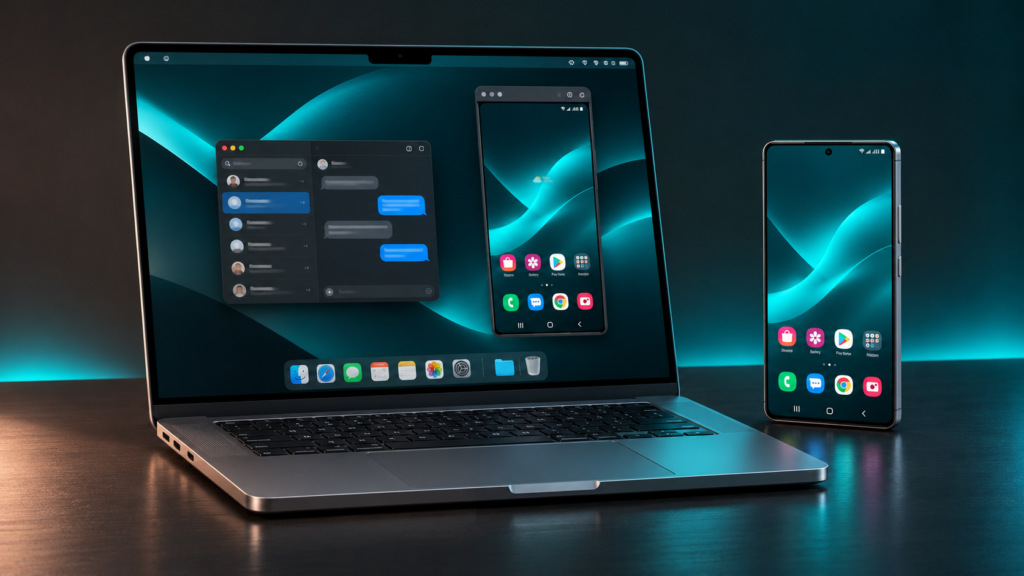
The second is about scrcpy, which brings my Android phone’s screen into a window on the Mac.
That gives me access to the phone using the computer’s keyboard and mouse. My article documents my working USB setup, the initial connection problem, and the convenience of launching it through NotchNook Pro’s terminal tab.
Signal handles my messaging workflow. scrcpy gives me access to the phone itself. Together, those articles show two practical ways to make different ecosystems work alongside each other.
Read how I use scrcpy on my Mac →
Final Cut Pro and Creator Studio: Pay for the tools you will use
Creative software introduces a different kind of upgrade decision.
My Final Cut Pro versus Creator Studio article looks at how MotionVFX changes the value calculation, especially for editors who use effects, templates, and related creative tools.
The central question is whether the extras fit your actual work.
A bundle can be attractive without being necessary. An existing editor can remain the right choice even when a subscription gains more features.
My conclusion was to identify the specific extras that would earn their place before committing to another recurring payment.
Read my Final Cut Pro and Creator Studio comparison →
Better hardware still needs to justify the upgrade
That same thinking runs through my hardware coverage.
My Studio Display comparison asks whether the premium display’s improvements are valuable enough for the work you actually do. Better specifications matter most when they solve a problem or support a task you care about.
Read my Studio Display versus Studio Display XDR comparison →
My MacBook Neo article looks at the value of an entry-level Mac and how the alternatives affect its appeal. The least expensive option deserves comparison with the next step up, particularly when discounts change the gap.
Read my MacBook Neo analysis →
I also explored the wider pricing picture in my article about Apple’s “AI tax,” looking at the relationship between AI infrastructure demand, components, and consumer hardware costs.
Read my Apple pricing analysis →
Those pieces capture the pricing and market context when they were published. Check current offers before making a purchase.
Looking back at macOS Golden Gate’s development
My Golden Gate coverage follows the operating system through several beta milestones.
The Beta 3 review focused on how unexpectedly dependable the system felt during my use. Beta 4 shifted the conversation toward refinement. By Beta 6, the redesigned window controls raised questions about how much visual change improves the Mac experience.
Read the progression:
- macOS Golden Gate Beta 3: My early review
- macOS 27 Beta 4: Why refinement mattered
- Golden Gate Beta 6: The redesigned traffic lights
These are snapshots of those beta builds, rather than reviews of the current release. Together, they show how my impressions developed as Apple changed the software.
Where I would start
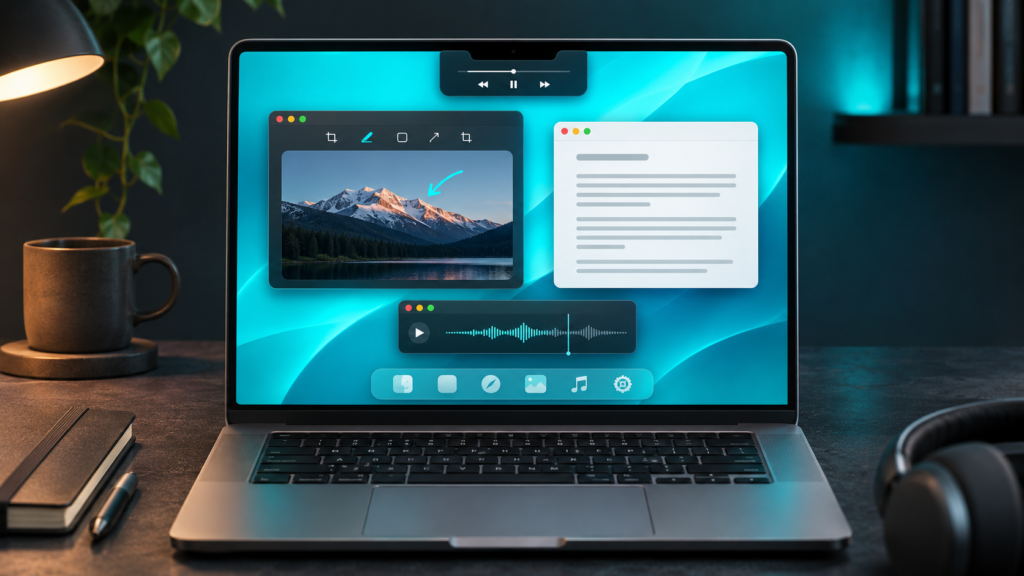
Pick the annoyance you encounter most often.
If screenshots are part of your work, start with CleanShot X. If switching windows interrupts you, look at DockDoor Pro. If writing feels constrained by the keyboard, read about Superwhisper.
For Android and Mac users, Signal and scrcpy are particularly useful places to explore. If you enjoy customizing the interface, compare NotchNook Pro and Alcove.
You do not need every utility in this roundup. Adding software should make your setup easier to live with.
That is the thread connecting my Mac coverage: find the changes you appreciate during ordinary use, then spend your time and money there.

Reviewed by
Bryan
Independent technology coverage focused on useful context, real-world experience, and honest recommendations.